![Mallard Bay Logos-01.png]](https://resources.mallardbay.com/hs-fs/hubfs/Mallard%20Bay%20Logos-01.png?height=50&name=Mallard%20Bay%20Logos-01.png)
Access your Outfitter Dashboard
-
Access Templates:
-
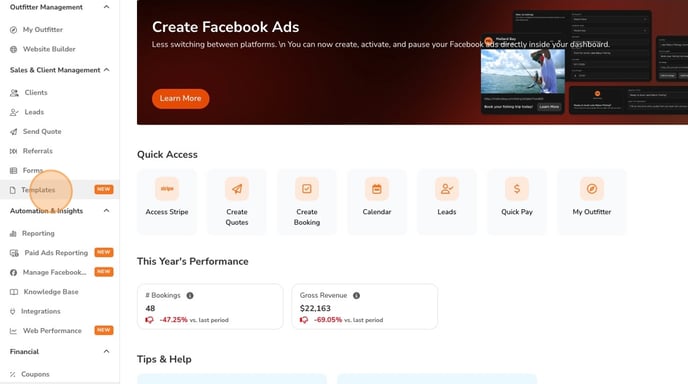
From your outfitter dashboard, go to Sales and Client Management → Templates.
-
-
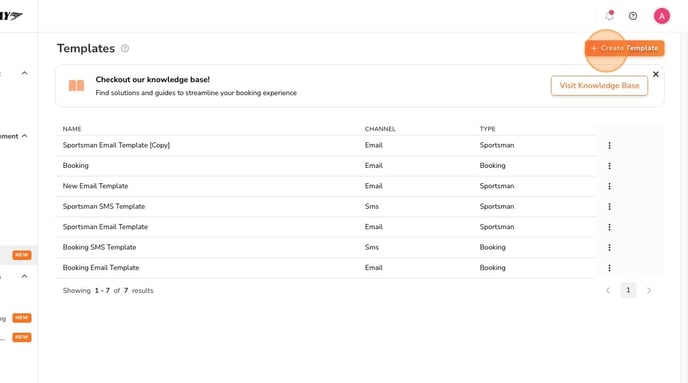
Create New Template:
-
You can create a new template as either:
-
Email template
-
SMS/text message template
-
-
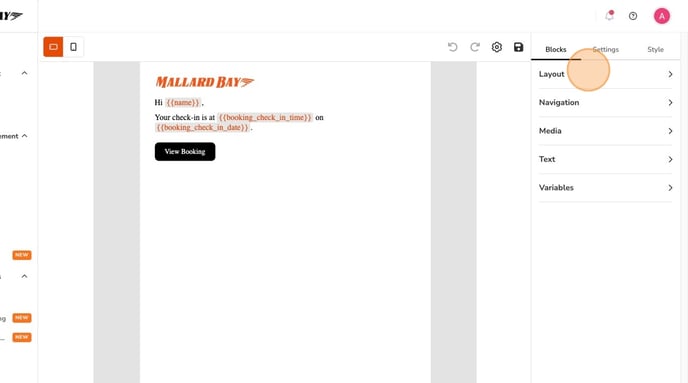
Templates are highly customizable.

- Text templates:
-
-
-
Add custom text
-
Include images if desired
-
Example: message for customers after they book
-
Save after editing
-
-
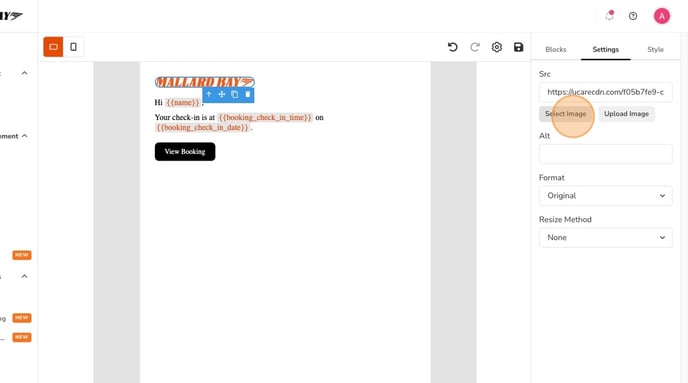
Email templates:
-
Layout options: multiple columns, navigation, buttons

-
-
-
-
-
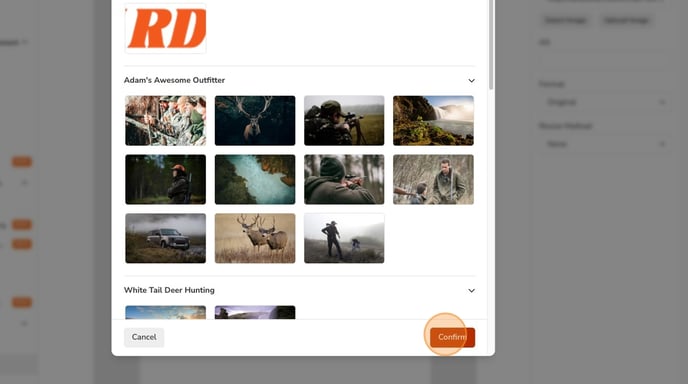
Upload images from your computer or pull from outfitter page/listings
-
Use variables to auto-update certain text fields
-
Style templates and manage additional settings
-
-
-
Purpose of Templates:
-
Create as many templates as needed for various communications
-
-
Send Template to Client:
-
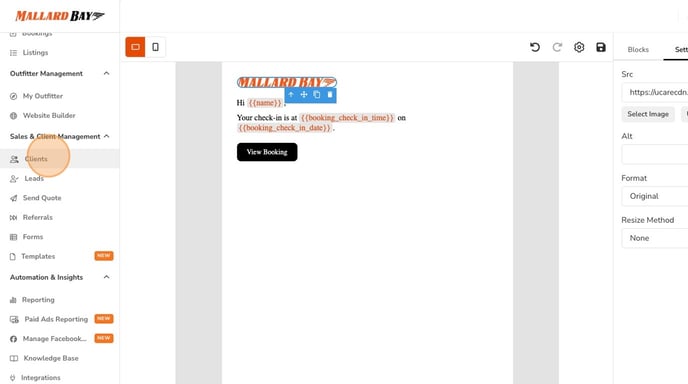
Go to your client list (all bookings or clients)
-
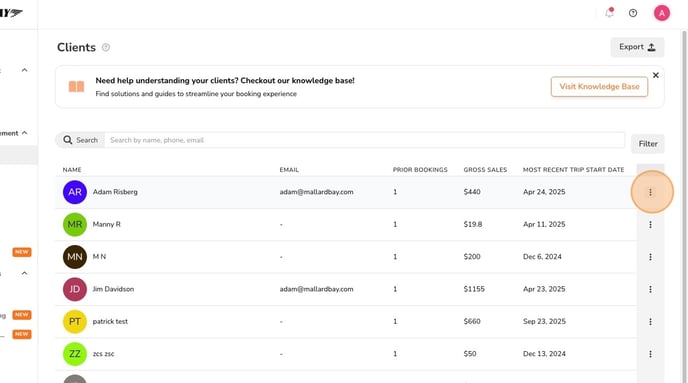
Select a client
-
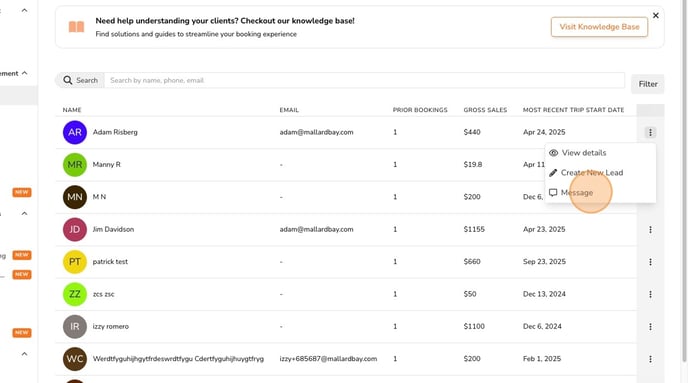
Click three dots → Message
-
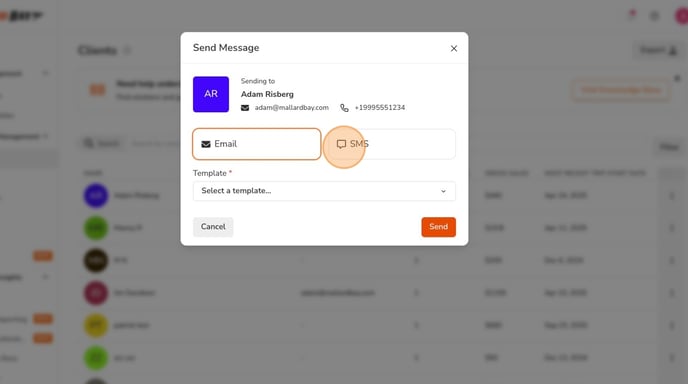
Choose Email or Text
-
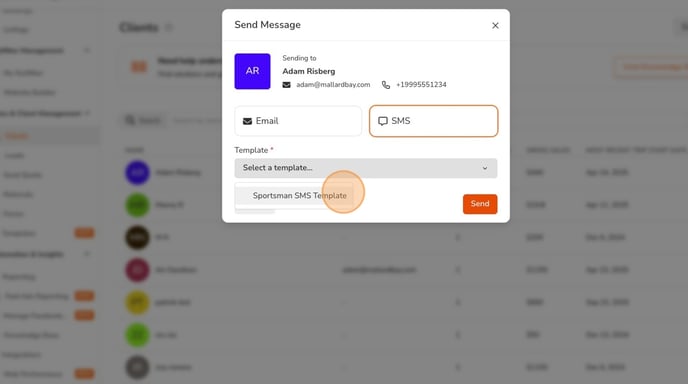
Select the corresponding template
-
Send message! Once you press send, you selected client will receive the template you created via email or text message, whichever option you chosse!
-