![Mallard Bay Logos-01.png]](https://resources.mallardbay.com/hs-fs/hubfs/Mallard%20Bay%20Logos-01.png?height=50&name=Mallard%20Bay%20Logos-01.png)
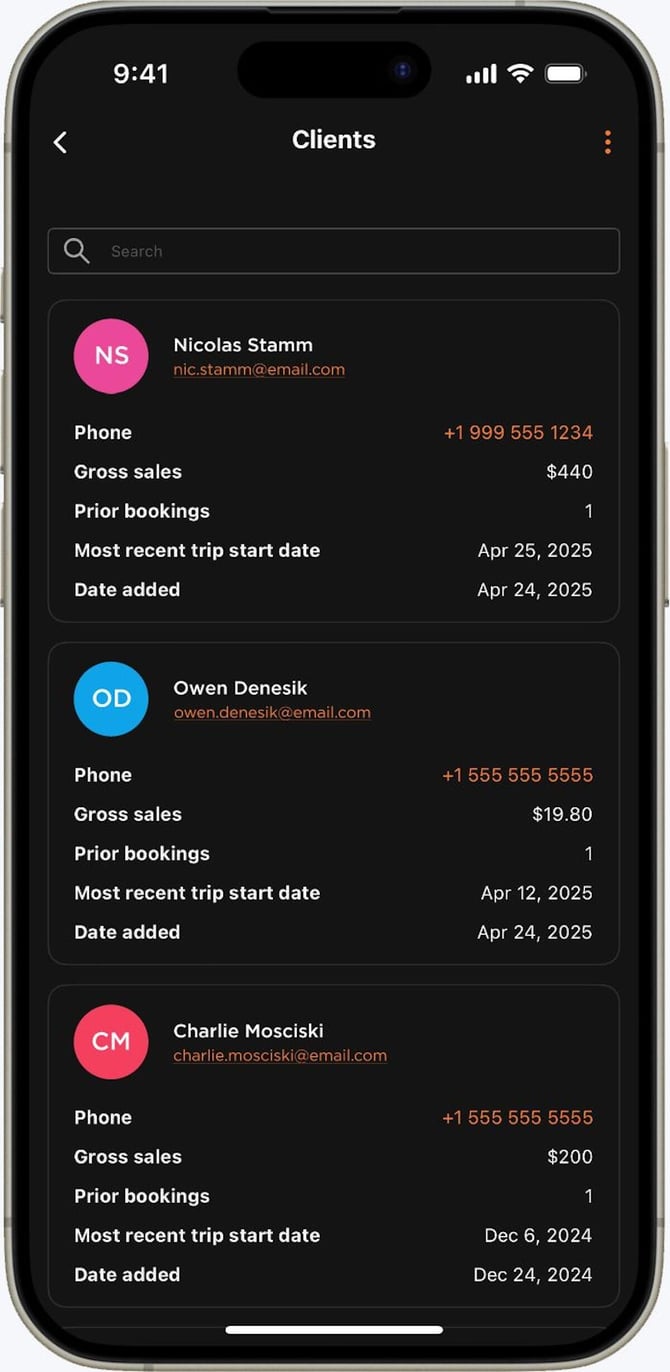
You can manage client records from the CRM/contacts area of your dashboard.
To manually add a client:
- Open the CRM or Contacts section.
- Click Add Contact or Create Client.
- Enter the client’s basic info, such as:
- Name
- Phone number
- Notes
- Any custom details you track
- Save the record.
Once a client record exists, you can usually manage:
- Contact information
- Notes and internal history
- Bookings tied to that client
- Messages or communication history
- Lead/customer status
- Tags or lists, if your account uses them
For ongoing management, open the client record whenever you need to update details, review their activity, or send a message.
If you want, I can also help you find a specific client record
Watch the 30–60 second walkthrough.