![Mallard Bay Logos-01.png]](https://resources.mallardbay.com/hs-fs/hubfs/Mallard%20Bay%20Logos-01.png?height=50&name=Mallard%20Bay%20Logos-01.png)
You’ll manage that from Listings, which I’ve opened for you.
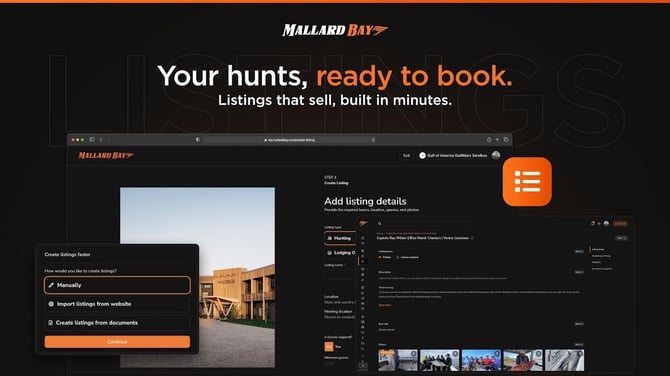
Use Add Listing or Create Listing, then fill in the basics:
- Listing name
- Trip or product description
- Location
- Photos/media
- Pricing packages
- Availability
- Guest requirements, forms, or waivers if needed
Open the listing and update sections like:
- Photos and marketing copy
- Pricing and packages
- Dates or availability
- Included resources, lodging, gear, or meals
- Forms, waivers, and guest instructions
Live listings can still be edited, but changes usually affect future customers rather than already-created bookings.
For old or unused listings, you can:
- Unpublish them if you don’t want customers to book them
- Rename them clearly if they’re seasonal or internal
- Update outdated photos, prices, or package names
- Review availability so customers don’t see incorrect dates
- Keep only the listings you actively sell visible to customers
For special cases like lodging-only, gear, add-ons, meals, private events, or nonstandard packages, the best setup depends on whether customers should book it directly or whether it should be attached to another booking.
A good rule of thumb:
- If it is something customers book by itself, make it a listing.
- If it supports another trip, set it up as a resource, add-on, lodging, meal, or package component where available.
- If it is only for internal tracking, avoid publishing it publicly unless customers need to see it.
Watch the 30–60 second walkthrough